 Crisp
CrispYou plug a 1080p or 1440p monitor into your Mac and everything is either microscopic at native resolution or fuzzy the moment you scale it up. It isn't the monitor, and it isn't a bad cable. It's how macOS handles external displays.
What's actually happening
A MacBook's built-in Retina screen has a very high pixel density (around 220 PPI). macOS renders it at 2x and scales down, so the interface is both sharp and comfortably sized. For most external monitors, macOS does not offer that same HiDPI (Retina-style) scaled mode, which leaves you with two bad options:
- Native resolution: perfectly sharp, but the UI is drawn at physical pixel size, so on a 27" 1440p display everything looks tiny and cramped.
- A lower scaled resolution: the UI gets bigger, but you're now driving the panel off its native resolution, so the whole image goes soft.
What you actually want is a "looks like 1920×1080, rendered at 2x" HiDPI mode: big and sharp, exactly like the built-in display. macOS hides that option for external monitors. Paid apps like BetterDisplay and Lunar can unlock it, but they put parts of it behind a Pro tier.
"The text is too small," or "the resolution I want isn't listed"
These are the same problem, worded two ways. If the text is too small on a 4K or 1440p external monitor, macOS is running the panel at its native resolution with no HiDPI scaling, so everything is drawn at physical pixel size. If the resolution you want isn't listed (or a scaled resolution "isn't showing" in Display settings), macOS is hiding the HiDPI modes for that display entirely. Both have the same fix: add back the missing HiDPI scaled resolutions, so you get a comfortable size that stays sharp.
The fix: Crisp (free and open source)
Crisp is a free, open-source (MIT) macOS menu bar app that adds the HiDPI scaled resolutions macOS leaves out. It's designed to feel like an expanded version of the built-in Display menu, so it lives in the menu bar and you never have to dig through System Settings.
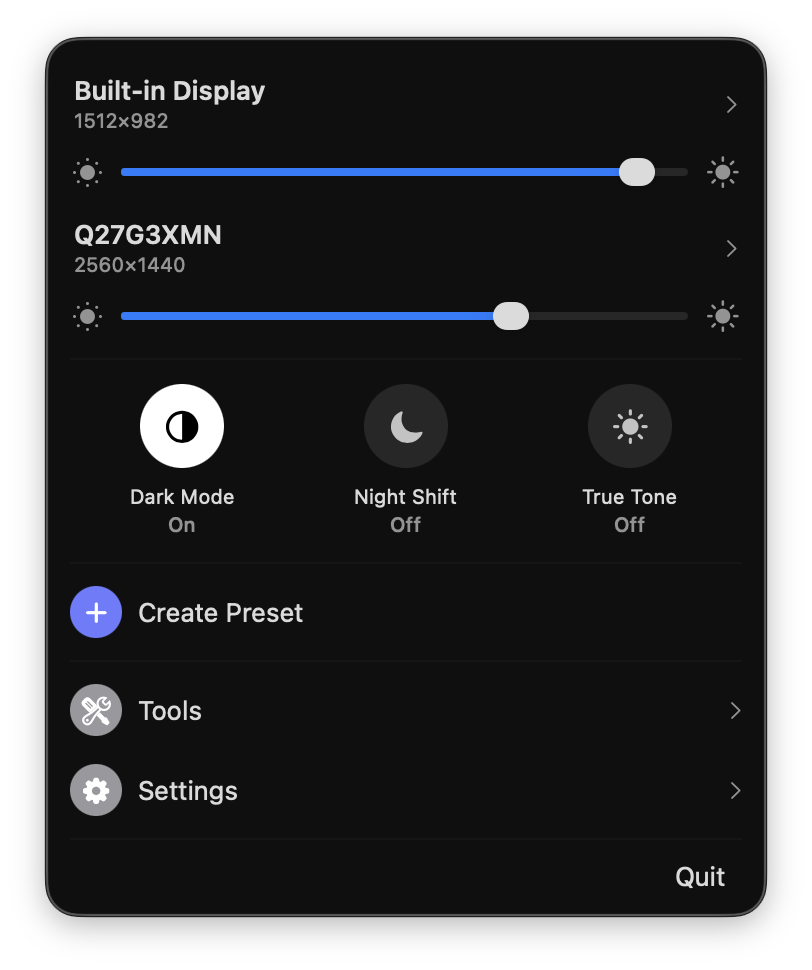
How to enable HiDPI on an external monitor
1. Install it. Homebrew is the cleanest path:
Prefer a direct download? Grab the DMG from GitHub Releases and drag Crisp to Applications.
2. Turn on HiDPI. Click the menu bar icon, expand the external display, and enable HiDPI. Displays at 2K and above get their scaled resolutions configured automatically, with no admin password and no screen flash. (A password is only needed for the optional smooth-scaling mode below, or for the rare panel that ships no HiDPI modes at all.)
3. Pick a scaled resolution. For example, on a 27" 1440p monitor the "looks like 1920×1080" option (rendered at 2x) is usually the sweet spot between sharpness and screen real estate; on a 4K panel, "looks like 2560×1440" is a common pick. Want finer control? Turn on smooth scaling (opt-in, per display) for a dense ladder of in-between sizes, the flexible scaling people install BetterDisplay for. It installs with one admin prompt and stays off by default, since the in-between steps look slightly soft.
What else Crisp does
- Brightness on any monitor: hardware DDC control (with a software/gamma fallback), brightness keys that target the display under your cursor, all displays, or a subset you pick, and dimming below the hardware floor.
- Presets: save resolution, brightness, and arrangement as a set with custom icons and colors, and apply in one click.
- Arrangement: drag-to-arrange canvas and one-click main display switching.
- Disconnect displays: turn a physical display off and back on from the menu (Apple Silicon, remembered across sleep/wake).
- System toggles: Dark Mode, Night Shift, and True Tone from the menu bar.
- Color: ICC profile switching plus gamma, contrast, and gain adjustment.
- More: virtual HiDPI displays, notch hiding, auto brightness that follows your built-in screen, Keep Awake, and launch at login.
Crisp vs BetterDisplay and Lunar
The feature overlap is large; the difference is the price. Crisp is completely free, with no Pro tier, no license key, and no daily limits. Things the others reserve for a paid tier, flexible HiDPI scaling (BetterDisplay Pro is $21.99), auto-brightness that follows your built-in screen (Lunar Pro), and turning a display off and back on (Lunar's BlackOut), are free in Crisp. Lunar's free tier also caps you at 100 adjustments a day; Crisp has no cap. It's open source (MIT), so you can read the code or build it yourself.
To be fair about the gaps: Crisp does not (yet) do XDR/HDR brightness boost, EDID overrides, picture-in-picture, or Apple Shortcuts and CLI automation. If you need those specifically, BetterDisplay Pro is the better fit. For sharp HiDPI, brightness, presets, and arrangement without paying, Crisp covers it.
See the full side-by-side: Crisp vs BetterDisplay, Lunar & MonitorControl →
FAQ
Does HiDPI work on any external monitor?
Almost always. Displays at 2K (1440p) and above get their scaled resolutions configured automatically; lower-resolution panels can still work but offer fewer useful HiDPI steps.
Will turning on HiDPI make things blurry?
No, it is the opposite. Blur comes from running a non-native scaled resolution; HiDPI renders at 2x and scales down, so the image stays sharp while the interface gets a comfortable size.
Which scaled resolution should I pick?
On a 27-inch 1440p monitor, "looks like 1920×1080" (rendered at 2x) is usually the sharpest, most comfortable choice. On a 4K display you have more room to spare, so "looks like 2560×1440" is a popular balance. Crisp lets you try each and keep what looks best.
Does it work on Apple Silicon and Intel Macs?
Yes, on macOS 14 (Sonoma) or later. A few extras, like disconnecting a display from the menu, are Apple Silicon only.
Why would it ask for my admin password?
Regular HiDPI scaling no longer needs one. A password is only requested when you turn on optional smooth scaling, or for a panel that ships no HiDPI modes, where Crisp installs a display profile into /Library/Displays; macOS protects that folder, so it asks once. Everyday scaling and everything else are password-free.
Do I need to disable SIP (System Integrity Protection)?
No. Crisp works with macOS security left fully on. When it does write a display profile (smooth scaling, or a panel with no HiDPI modes), it uses a standard admin-password prompt and never touches the SIP-protected system folders, so there is no reboot into Recovery and no csrutil disable.
Requires macOS 14 (Sonoma) or later; on macOS 26 the panel uses the native Liquid Glass backdrop. Localized in English and Simplified Chinese.